
Ankota Caregiver NextGen App Log-in
Ankota Caregiver NextGen App Log-in
Log-in
- Arrive at the service location
- Open the Ankota Caregiver app
- Change the language if needed
- Enter your User Name and Password
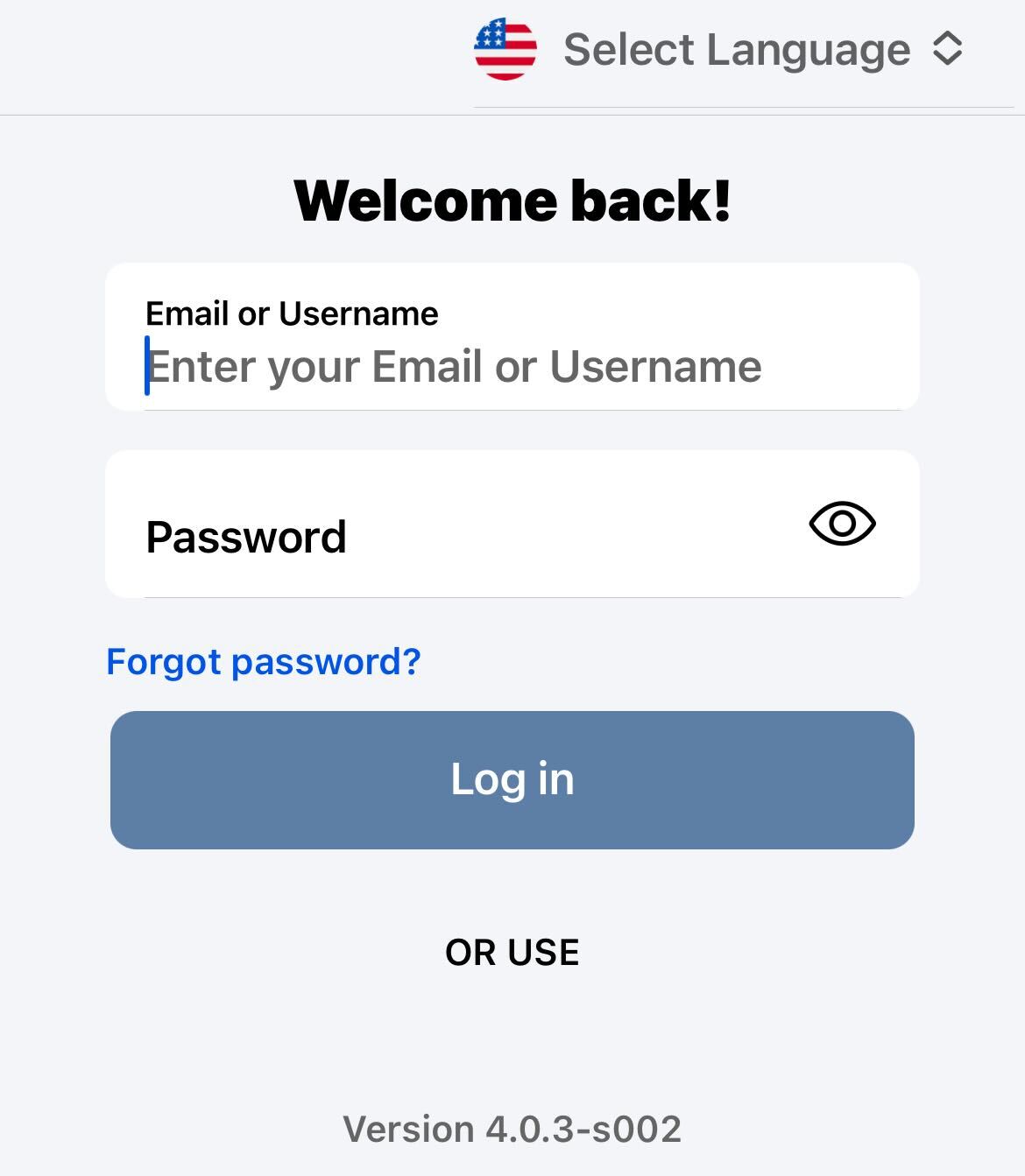
- Allow your phone to share your location or the app will not confirm location, which is required for EVV (this will be asked at your first log-in).
How to Enable Face ID in Ankota Caregiver NextGen
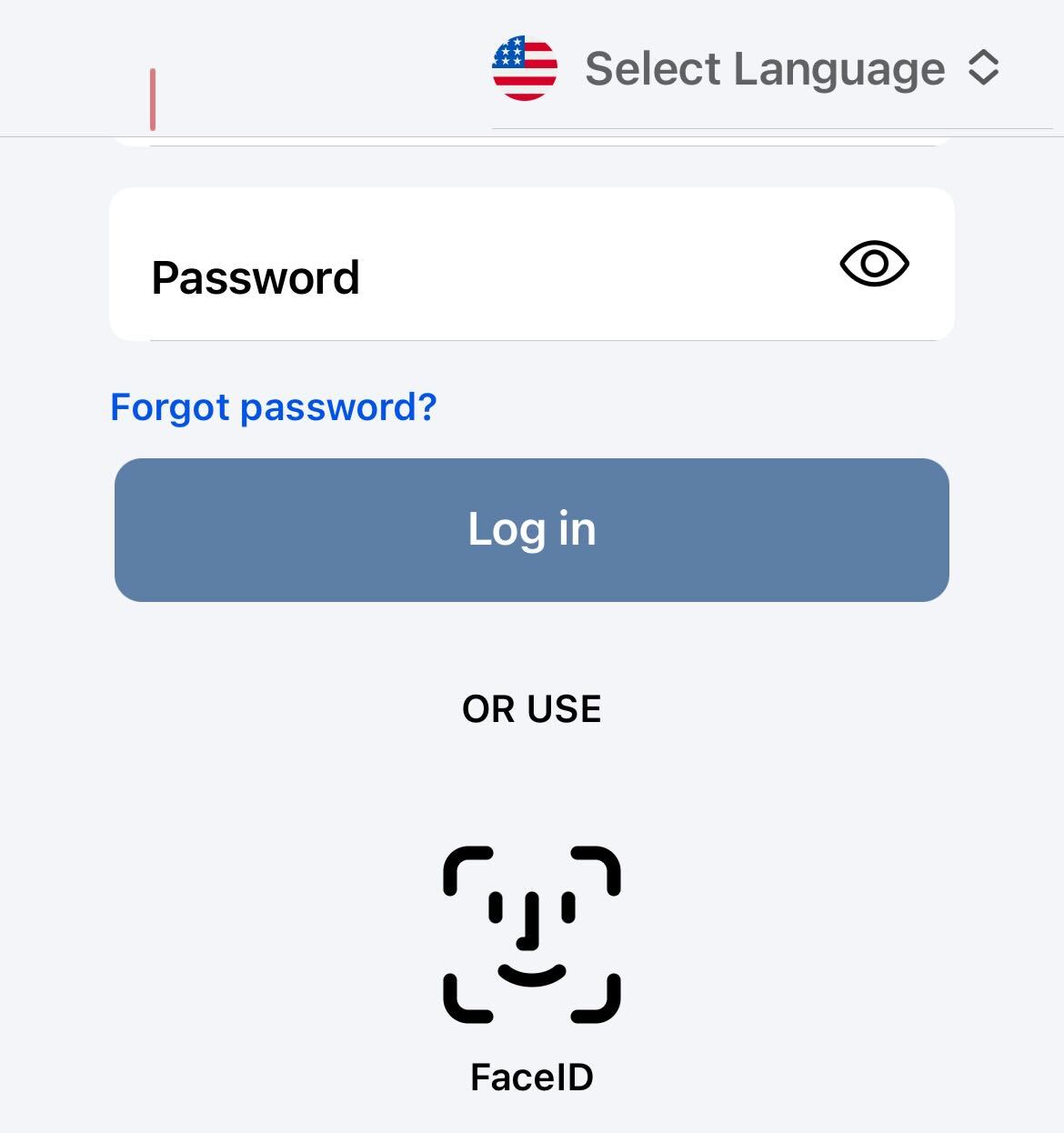
1. Scroll down and tap the Face ID icon on the main screen.
-
If you see either of these messages:
"Please input username for biometric authentication"
"There is no enrollment for this username..." You'll need to log in manually and set up Face ID through Settings.
-
Go to Settings:
Scroll to and select Settings
Tap Security
Choose Face ID
When prompted, tap Allow to grant Face ID access.
Tap the Face ID button again and position your phone so the camera faces you.
Once recognized, you'll see a Success message.
- On entering the Ankota NextGen Caregiver app, you will see several sections.
- These options may look different based on your organization's configurations.
- If you have most or all of the available sections, you may need to scroll to see them all