
Mobile App Download and Log-in
iPhone Download
- Open App Store. Note: If you can’t find it, swipe down on the Home Screen or tap the tiny Search button and type App Store there. You will see it in the results from where you can tap its icon to open it.
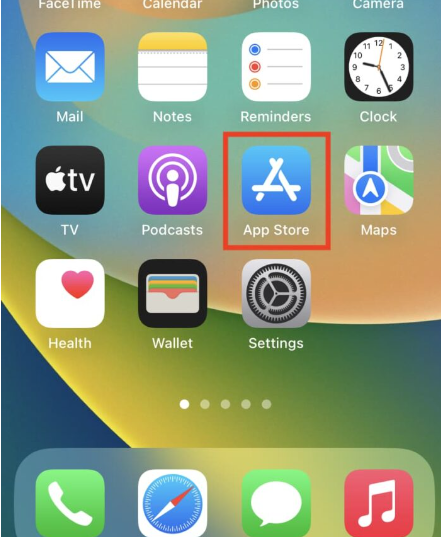
- Search Ankota Caregiver in the search bar.
- Next download the Ankota Caregiver app. To do so, tap the GET button next to it. Alternatively, tap the app name to see its full description, and then tap GET. The first time you tap GET, you may be asked to enter your Apple ID password. Please do that.
- The app should begin downloading. If not, go back to the App Store, and tap GET again. When an app is downloading, you will see its app icon with a circular progress hand on the iPhone Home Screen.
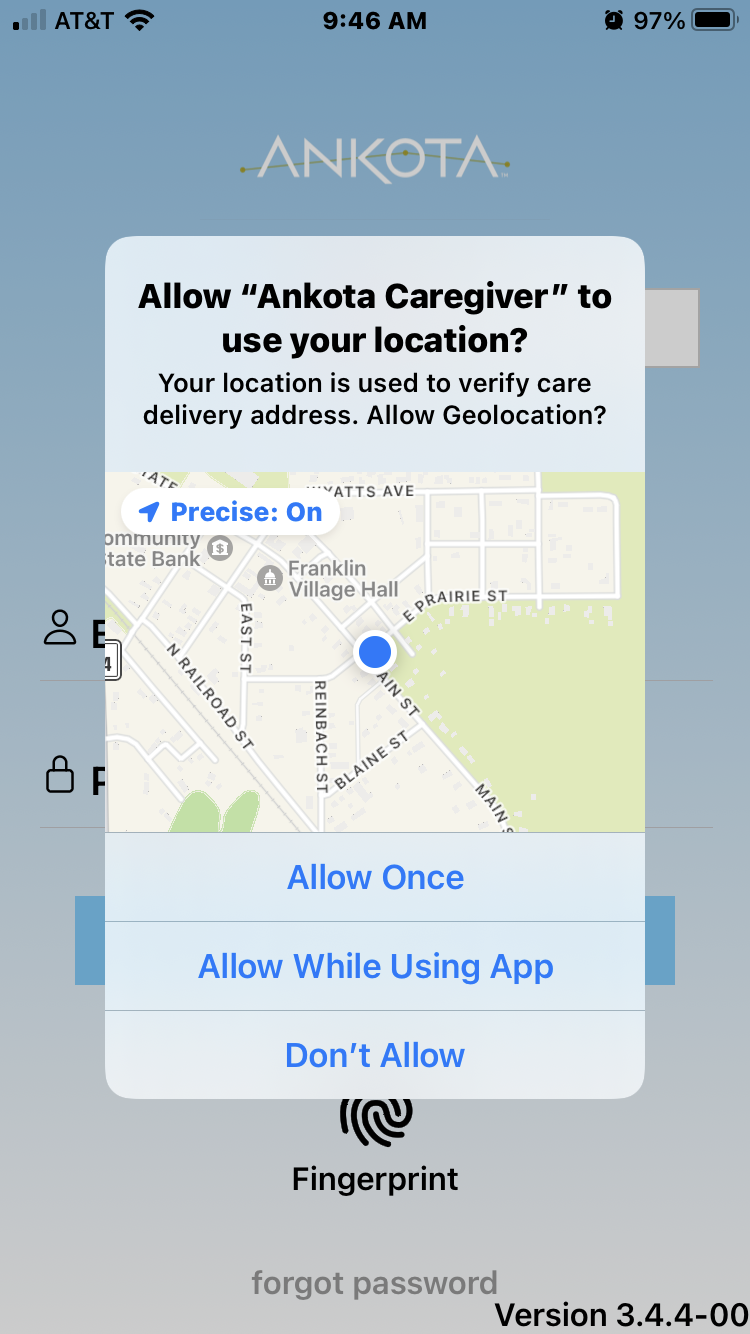
- Once downloaded, click on the Ankota Caregiver icon. Here it will ask to allow Geolocation. This is typically required for the Caregiver to clock in and out successfully. Select Allow While Using App. If select Allow Once, it will not prompt the caregiver again. See FAQ on how to change to Allow While Using the App.
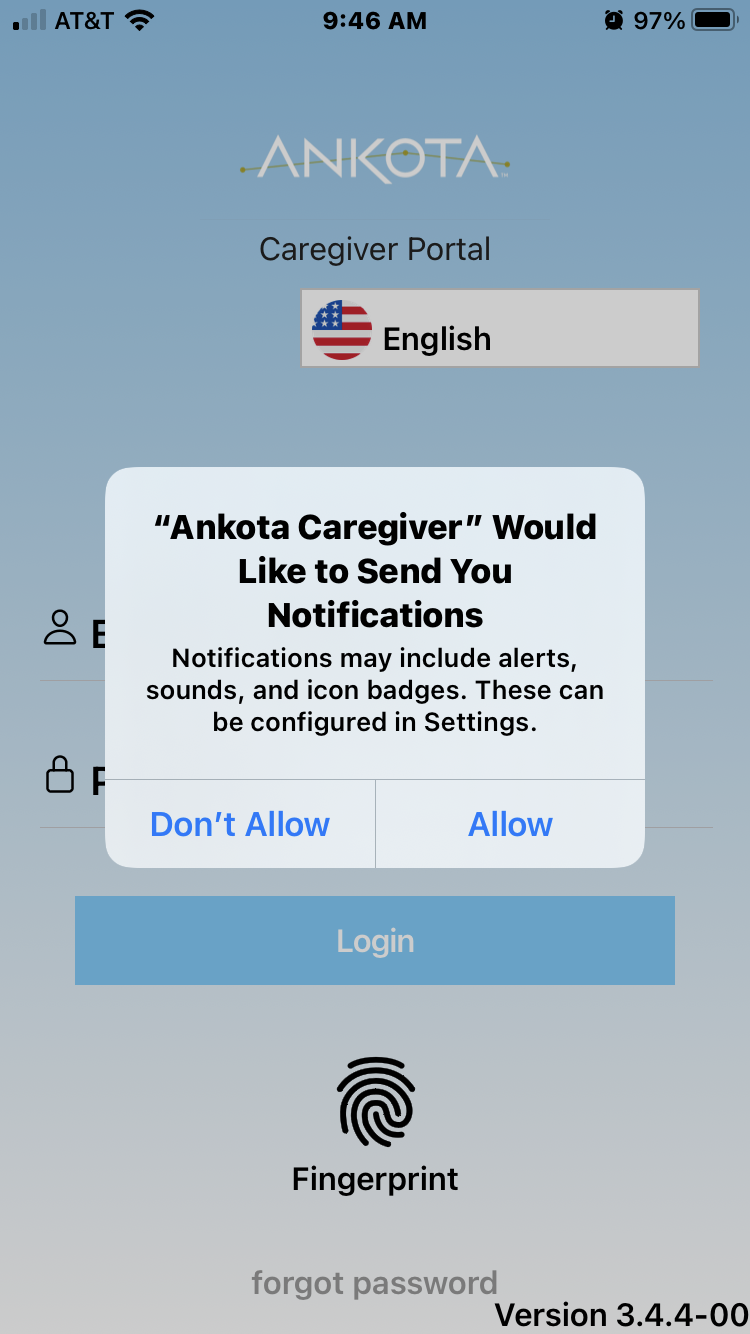
- The app will ask if you would like to receive notifications and alerts. This is recommended but not required.
Android Download
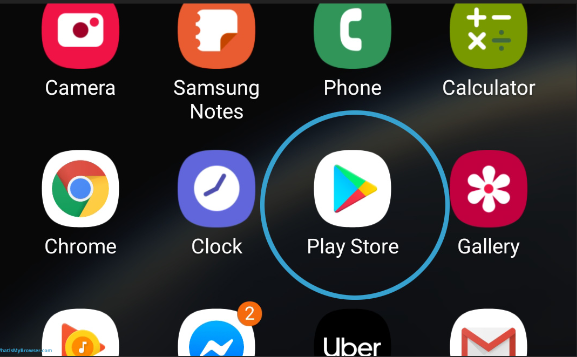
- On your phone, use the Play Store app Google Play.
- Search for Ankota Caregiver in the Search bar
- Tap Install next to the icon.
- Once downloaded, Select the Ankota Caregiver icon.
- Here it will ask to allow Geolocation. This is typically required for the Caregiver to clock in and out successfully. Select Allow While Using App. If select Allow Once, it will not prompt the caregiver again. See FAQ on how to change to Allow While Using the App.
- The app will ask if you would like to receive notifications and alerts. This is recommended but not required.
FAQ:
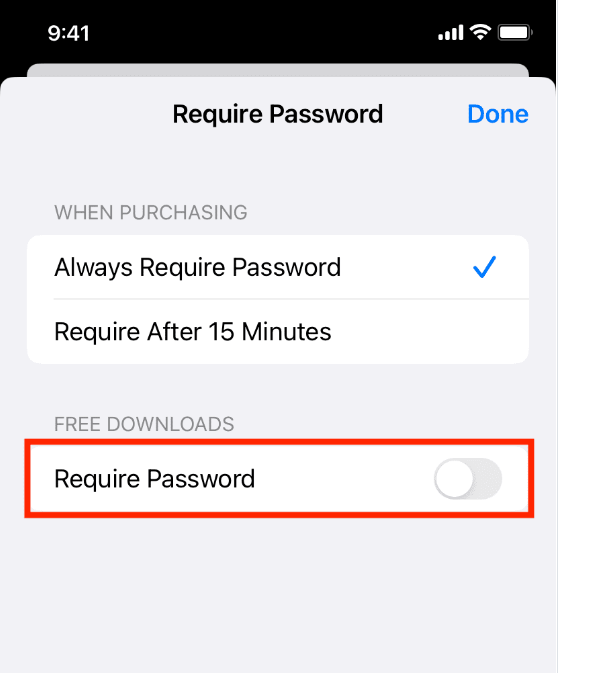
What to do if I don’t want to enter my Apple ID password every time I download free apps?
First, open the Settings app and tap your name from the top. Next, tap Media & Purchases > Password Settings. Now, enter your Apple ID password if asked. Finally, turn off the Require Password switch under Free Downloads.
How do I get it to ask the Geofence question again?
Delete the Ankota Caregiver app. Next download the app. This will make it to where the Geofence question is asked again. Note: Most States require the caregiver Allows While Using the App to clock in and out.
Log-in
- Arrive at the service location
- Open the Ankota Caregiver app
- Change the language if needed
- Enter your User Name and Password

- Allow your phone to share your location or the app will not confirm location, which is required for EVV (this will be asked at your first log-in).
- On entering the Ankota Caregiver app, you will see several sections.
- These options may look different based on your organization's configurations.
- If you have most or all of the available sections, you may need to scroll to see them all

