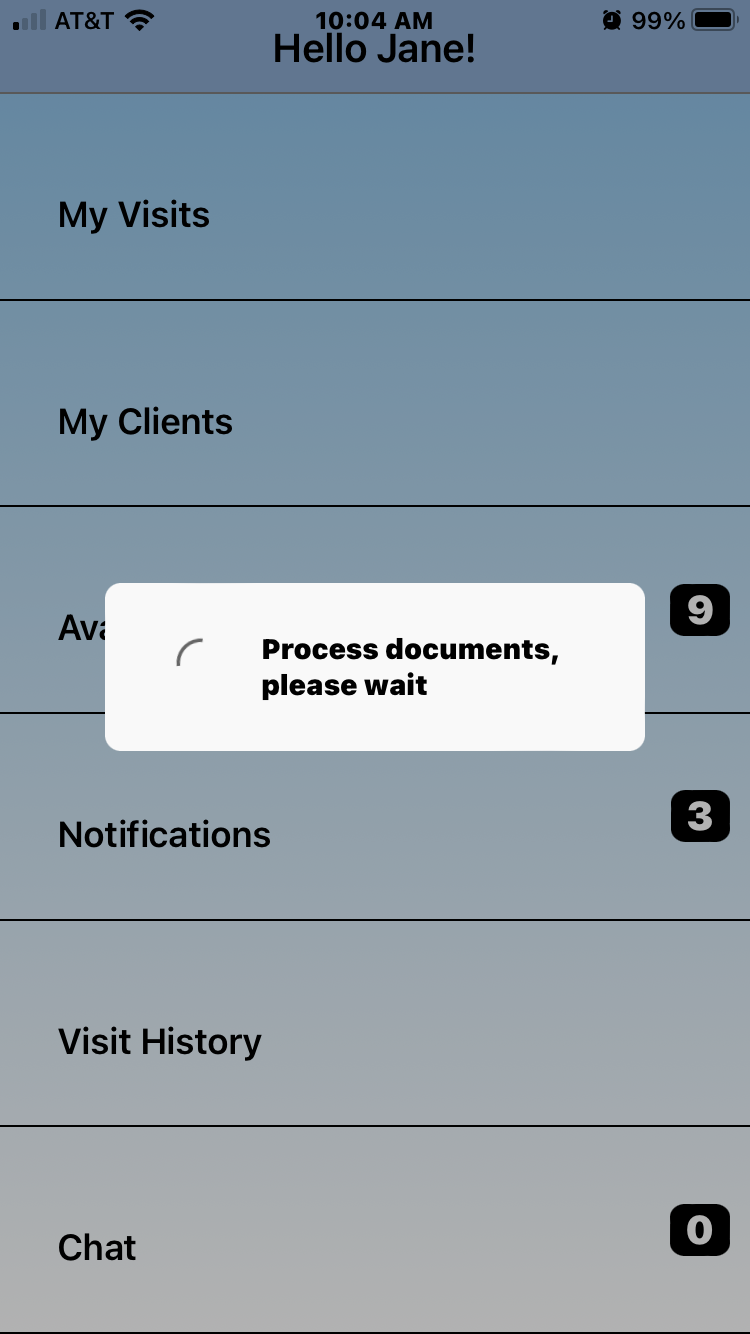
Documents in the Ankota Mobile App
View Documents
The Documents sections is different from the documents available on a visit for nurses or other caregivers. By clicking on this section, you will have access to PDF versions of saved forms. (This differs from access to forms on visits, where the forms are accessible for editing.) These documents links can be clicked for a quick read-only experience.
Document screen:
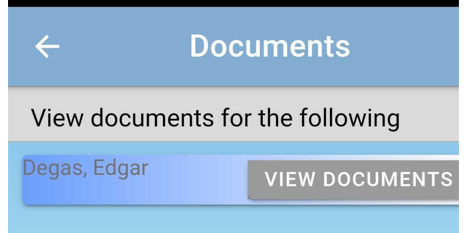
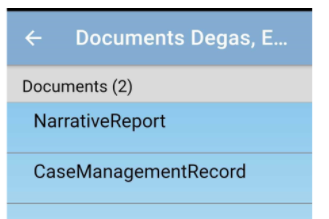
Document selections:
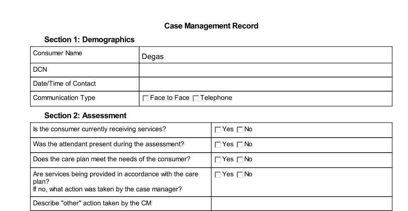
PDF Document View:
Filling and Processing Documents
Processing documents is a little different from the above. This is when the Visit has an attached document that needs to be filled typically by the caregiver or nurse. Ex: Medication List.
To fill and process a document in the Ankota Caregiver App, you will need to do the following:
After clocking into the My Visit page, go to My Visit and select Documents attached to the visit.
This will bring you to the attached document fill forms. Select the document needed.
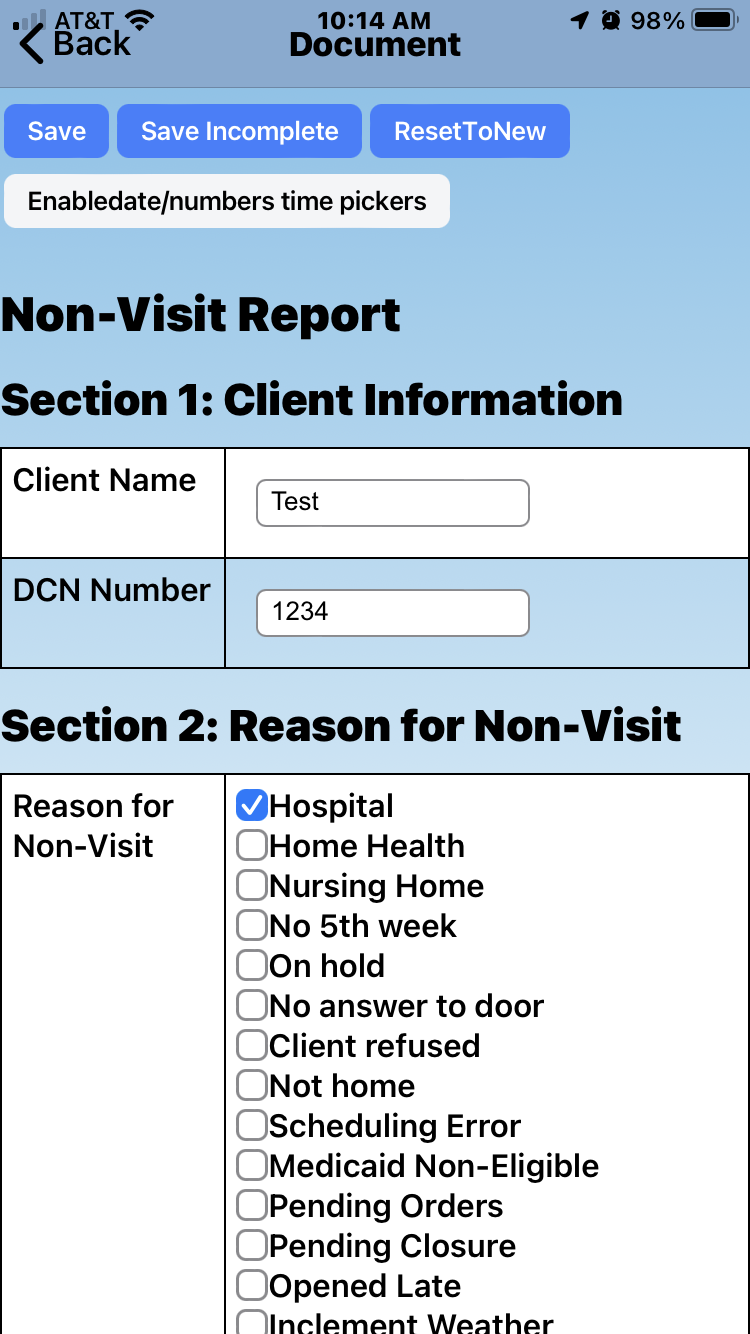
Here you will fill the form. After done scroll back to the top to Save. There is an option to select Save Incomplete, this is used so you can go back when later in the visit to finish the document. ResetToNew button will clear what you have previously entered.
After selecting Save there is one last step. Next you will hit Process Documents.
This will move the document over to Ankota. Note: Don't exit the page until it is done spinning.
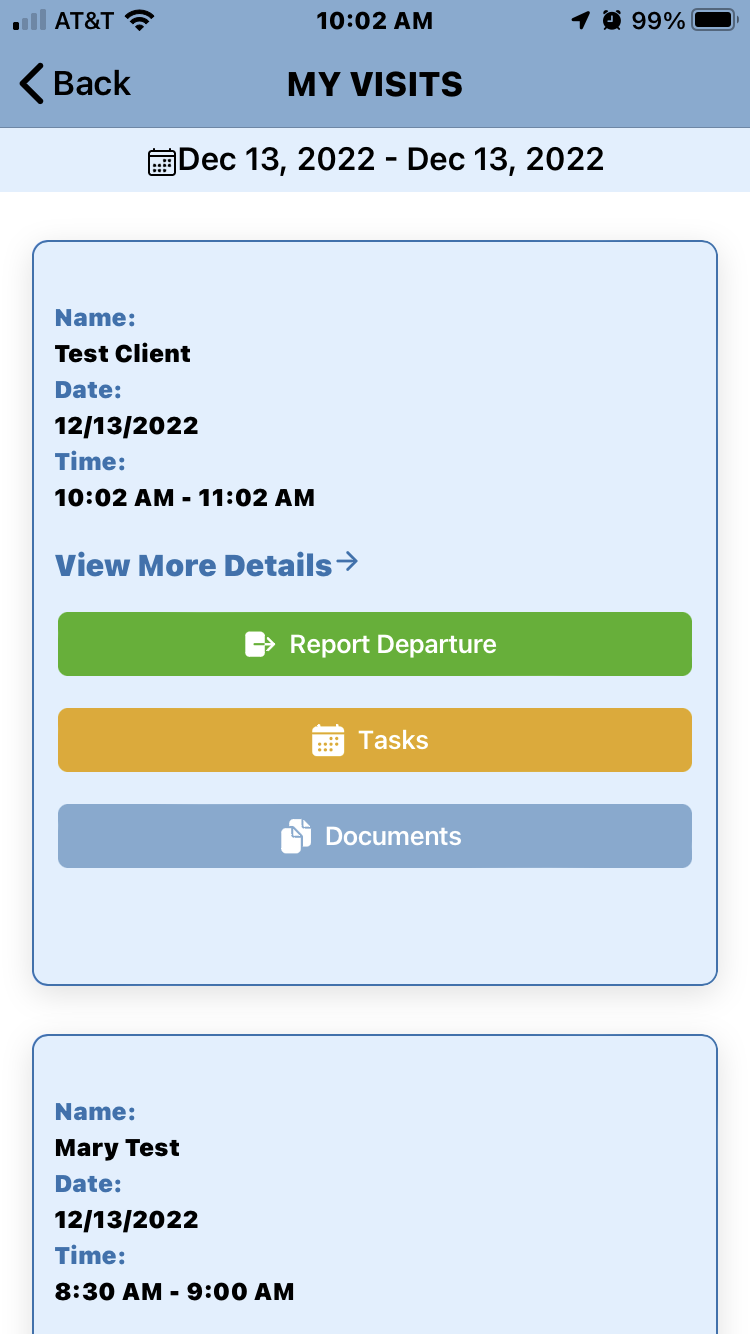 This will bring you to the attached document fill forms. Select the document needed.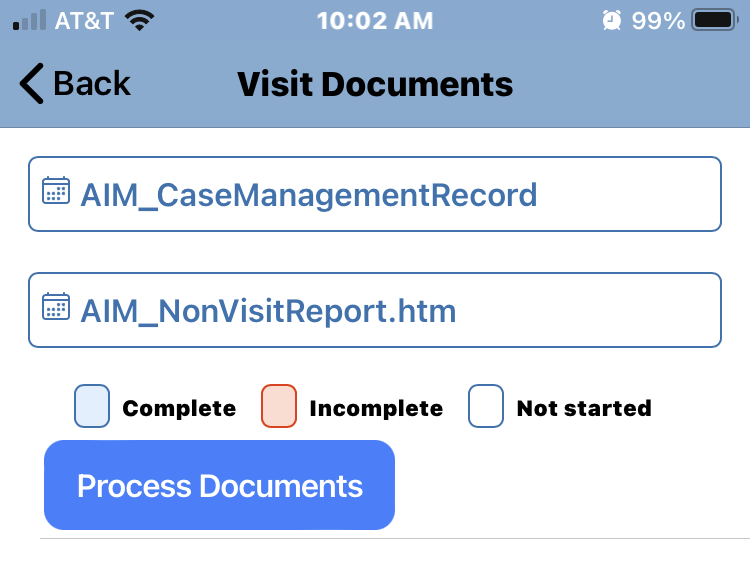
Here you will fill the form. After done scroll back to the top to Save. There is an option to select Save Incomplete, this is used so you can go back when later in the visit to finish the document. ResetToNew button will clear what you have previously entered.
After selecting Save there is one last step. Next you will hit Process Documents.
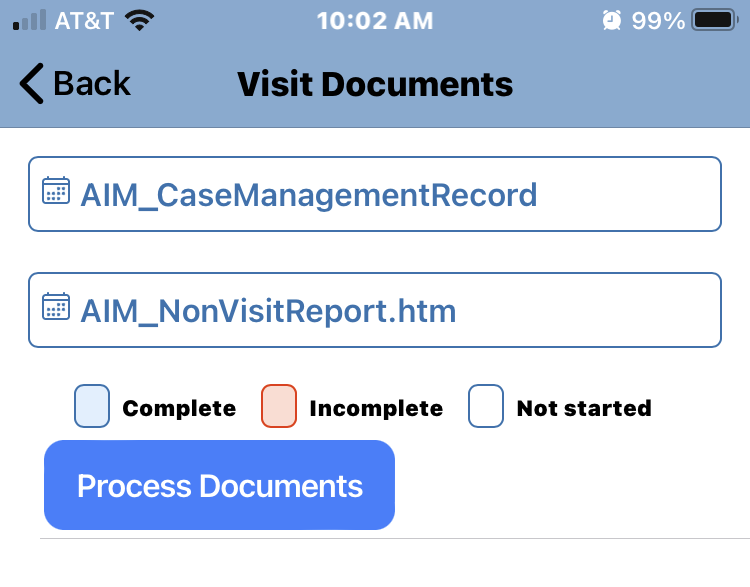
This will move the document over to Ankota. Note: Don't exit the page until it is done spinning.