Settings in the Ankota NextGen Mobile App
Settings
Several items are made available under Settings, including:
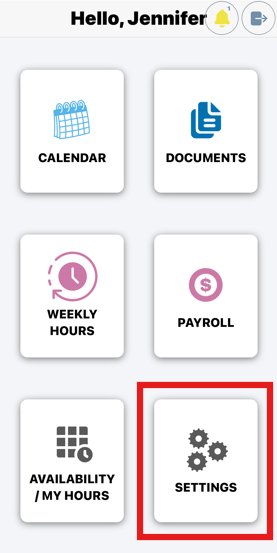
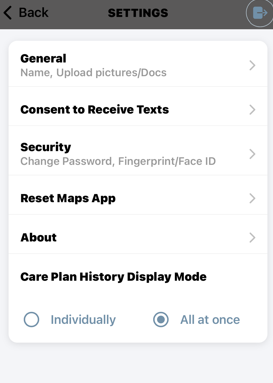
General Functionality
Caregivers can view their profile name and conveniently upload photos and documents in this section
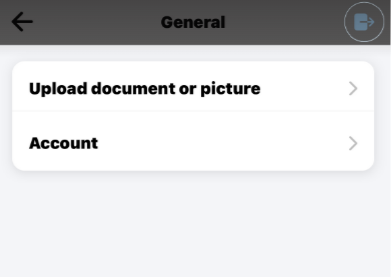
To upload documents or images, choose the destination where you'd like them to appear
After selecting your document, tap "Upload Photo/Document."
Choose whether you'd like to use your camera or select an image from your camera roll. If prompted, be sure to grant camera access to continue.
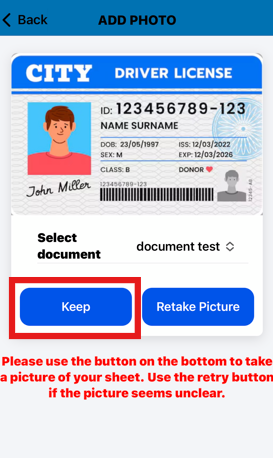
Once you've taken a photo, you’ll have the option to retake it or keep it if you're happy with the result.
Consent to Receive Text Messages Functionality
Most Administrators will contact you through mobile messaging, so we strongly recommend enabling consent to receive messages on your device.
Note: Messaging will only work if you enter a mobile number capable of receiving text messages.
When you first download and open the app, you’ll receive a prompt asking for your phone number (if it isn’t already listed in your caregiver profile).
• Enter your mobile phone number and email address.
• Check the box to consent to receiving messages and emails.
You can also provide or update your consent at any time:
Open the app and go to Settings.
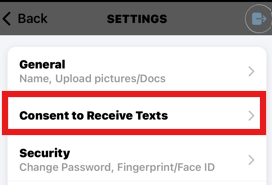
Select Consent to Receive Texts.
3. Enter your mobile phone number and email address, or update them if needed
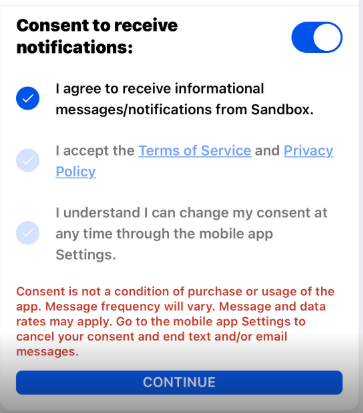
Slide the toggle to give consent and agree to the terms and conditions.
Save your changes.
Security Functionality
Use this section to manage your Ankota Caregiver NextGen login settings, including Face ID setup and password changes.
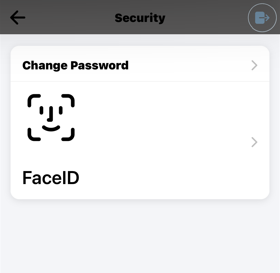
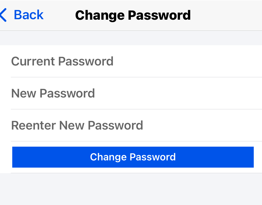
For enhanced security, we recommend changing your password every 90 days. To do so, navigate to 'Change Password,' input your current credentials, and set a new password.
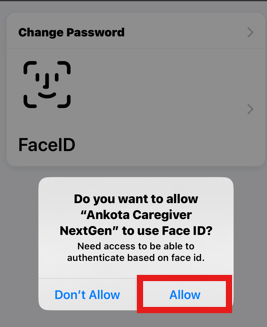
To make logging in more convenient, you can enable Face ID. To set it up, tap the Face ID icon and position your phone so it clearly sees your face.
Reset Maps App
The Reset Maps will reset the default map. In iPhones there may be an option for Bing, Google or Apple Maps. In Androids: Waze or Google Maps. After selecting Reset Maps, the next time the caregiver logs in; the navigator will choose the other option for Maps.
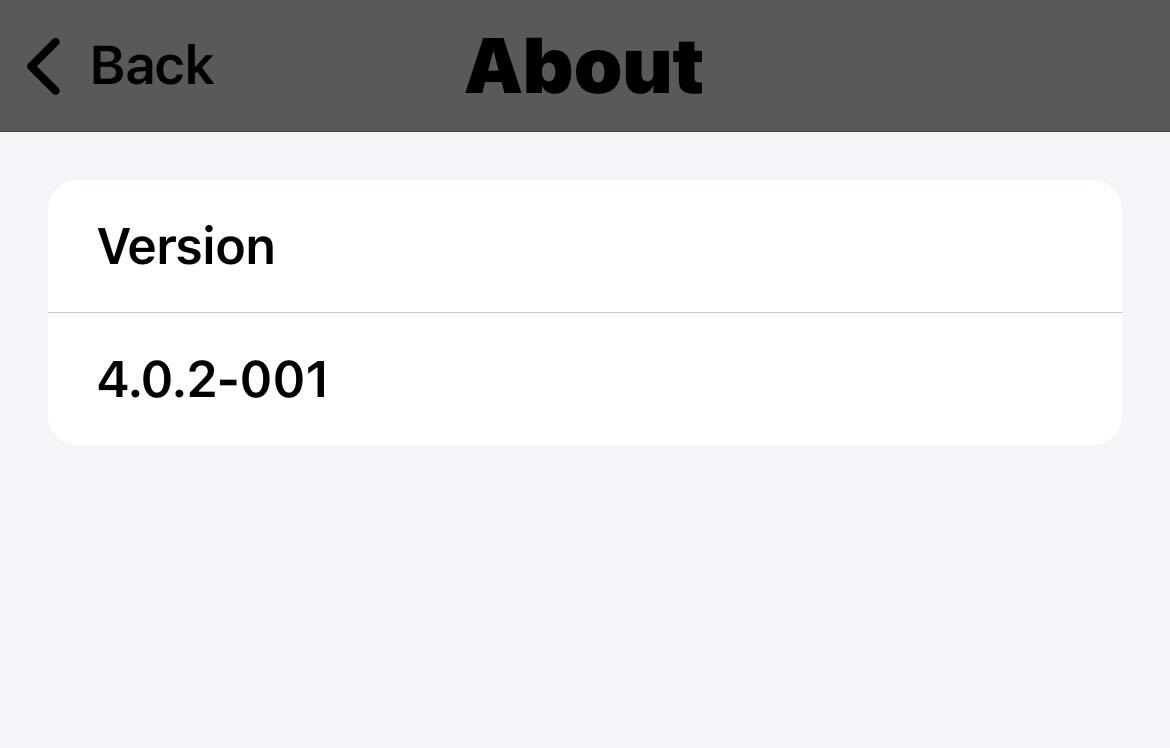
About Information
This is to see your software version.
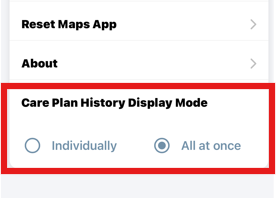
Care Plan History Display Mode
If the History feature is enabled, you can choose to view all entries at once or display them one at a time. This feature is especially useful for coordinating care teams, as it provides insight into what the previous caregiver worked on.
Example of a History entry: Worked with Michael on drafting his school essay and assisted with math homework. He’ll need help refining the essay tomorrow and preparing for his math quiz on Friday.