

Rework, Missed Visit, and On Hold Functionality
Overview
When caregivers do not complete their visits, there are two options.
For caregivers who do not schedule their own visits, visits can be sent to in a Rework status in the Visits section, so you can rework your previous visit.
For caregivers who schedule their own visits, missed visits can be created in the past by clicking the Missed Visit button on the My Clients scheduling page.
See below for more information on both process.
Send for Rework & Rework Recall
On Hold Manual Closure by Caregiver
Send for Rework & Rework Recall
When an admin sends a visit for rework, it causes the visit to show back up on the mobile app or mobile form, in which case you can re-fill out the visit or document and re-send. Reworks are to capture items/clock out times that were missed previously. The Rework will appear under My Visits in a Lavendar color.
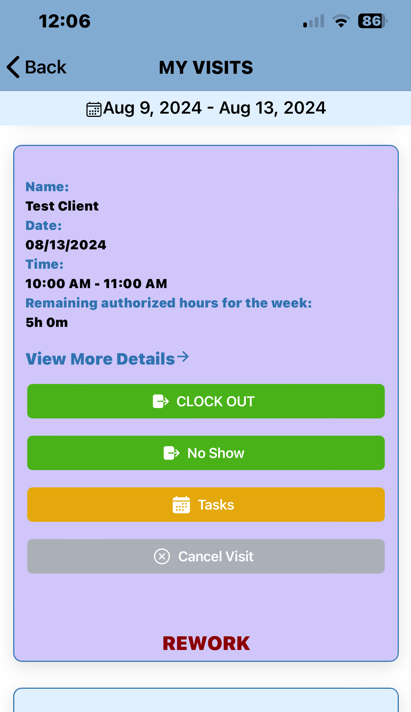
You can make the following updates to visits in rework:
Report the times (Only in Notes)
Set the care plan item values
Add errands
Add notes
Get client signature
Get caregiver signature
Resubmit for review
Mark as No Show
Mark as Cancel Visit
The View More Details button can be clicked on to expand to the Visit Notes sent by Administrators. See example below.
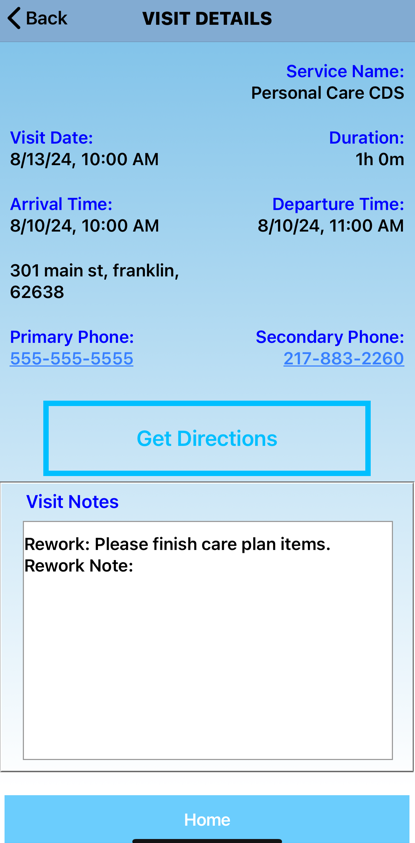
Please note you can only enter actual times as a note, which can then be reviewed by the admin.
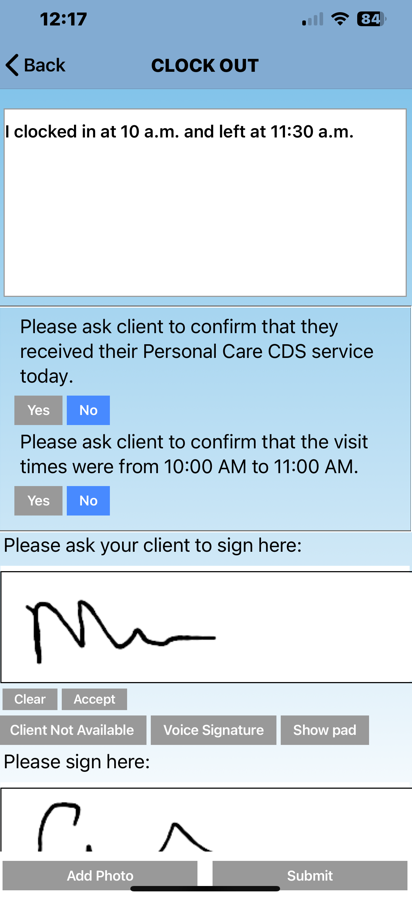
When a rework is sent, the caregiver and client's original signatures will disappear, and a new signature will need to be captured.
Alternately, if the Rework request was accidental or is no longer needed, your administrator can press Rework Recall. This will send a message to you that says "The request for rework has been recalled."
Missed Visit Additions
For caregivers who schedule their own visits, missed visits can be created in the past by clicking the Missed Visit button on the My Clients scheduling page.
To create a missed visit, open the My Clients section of the mobile app, then click the Report Missed Visit button.
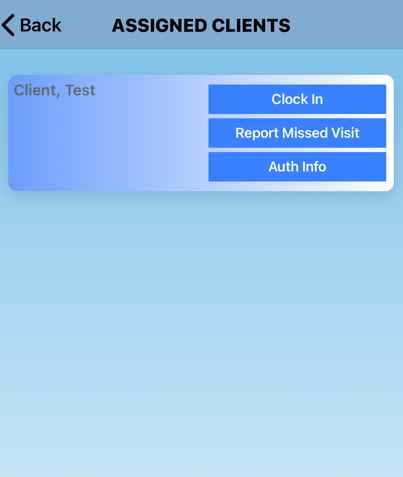
Then enter the dates and times as appropriate. If your organization has a list of reasons to choose for the missed visit, select one at that time.
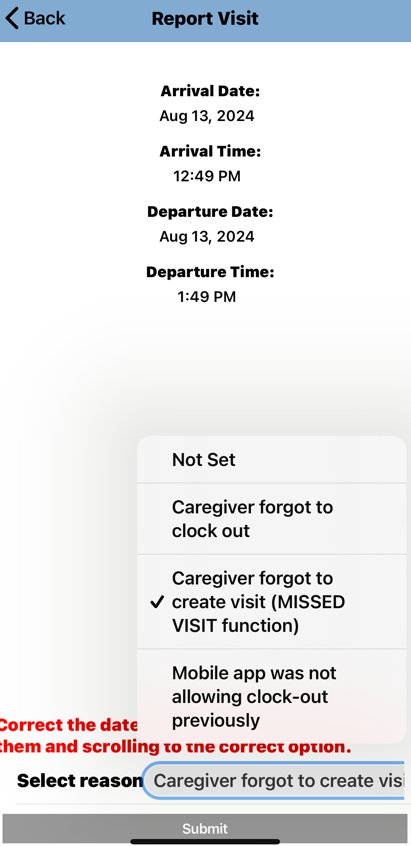
Finally, complete the visit as needed:
Set the care plan item values
Add errands
Add notes
Get client signature
Get caregiver signature
After completion, the visit will automatically be flagged for the administrator.
Cancelled Visit (Under My Visits)
When there is a scheduled visit, there is a button (optional) to select Cancel Visit. When doing so, the app will prompt a notes section and a specific list of reasons such as Client Cancelled, Caregiver Cancelled, Client Hospitalized, etc.
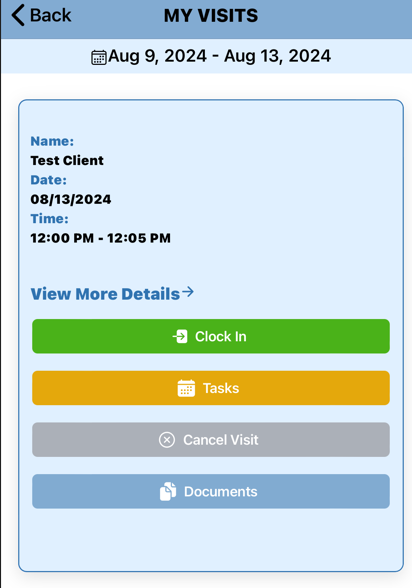
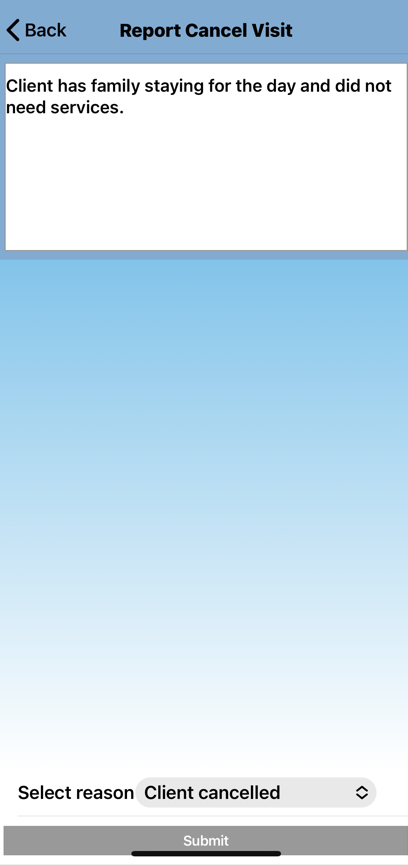
On Hold Manual Closure by Caregiver
In Ankota, visits which were never clocked out of by a caregiver are automatically set to the status of On Hold. This will appear in a Salmon color. This causes the visit to return to the caregiver under My Visits.
When a visit is returned to a caregiver through this On Hold option, the intention is to let the caregiver complete the visit. This includes putting in a time and date manually, explaining why the clock-out was missed, and completing care plan items. Any visit closed this way will show as manually closed for state exports.
This function is generally meant to replace paper timesheets for missed clock-outs. The reason for the missed clock-out is configurable, so you can add your preferred list of options if desired per admin request.
Note: The caregiver will still be able to report arrival on current visits in My Visit tab without having to complete the older On Hold visit.
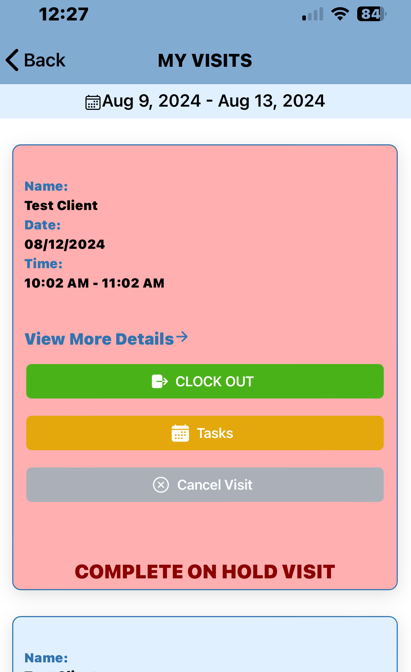
Usually, an on hold visit occurs when a caregiver forgets to clock out or finish care plan items.
This functionality is under My Visits and will show an older visit below. First the caregiver will select Report Departure where it will go to the Report Visit screen. Here the caregiver can click on the Departure Time and Date and adjust with the scroll below. Be sure to Select a Reason if prompted then hit Submit. If tasks are needed reported it will then prompt to complete care plan items. Then the caregiver will select Okay for departure. This will send the visit to Ankota's Admin side to be reviewed.
On Hold visits are recommended to be completed once showed in the My Visit tab for billing purposes.
The caregiver must select a reason on why the visit was not completed previously before submitting.
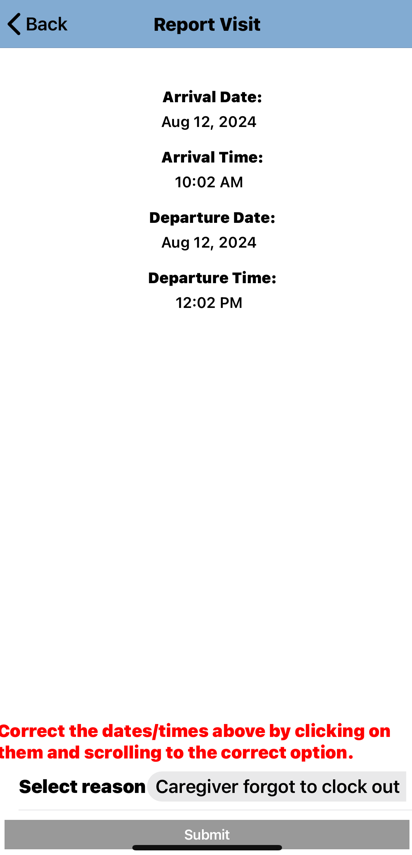
Note: If the visit was manually arrived by Admin and moved to On Hold, the caregiver can adjust the arrival date/time as well as departure date/time. This is so the caregiver can move it to the corrected past date/time if needed.